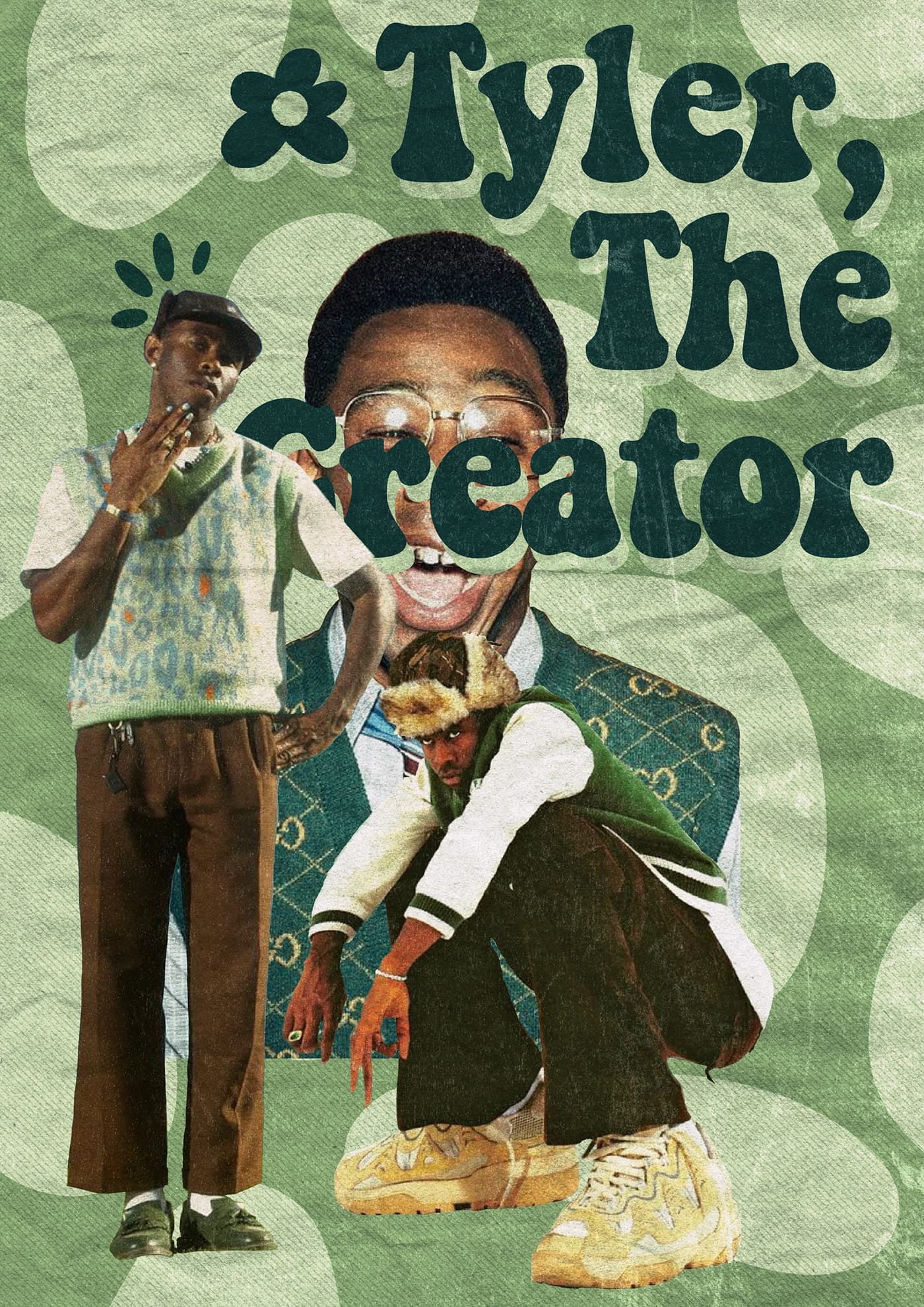
Create images for social media in minutes
Poster’s image generation flow is designed for one thing: fast, consistent, on-brand outputs you can publish immediately. Whether you’re making a bold artist poster, a product launch graphic, or a collage-style social post — the workflow is the same.
1) Start with a strong template
Pick a template that matches your layout intent — portrait, square, landscape. Templates give the model a structural anchor: typography placement, spacing, and composition style. You can also upload your own.
2) Select a brand (optional, but recommended)
If you’ve already created a brand in Poster, selecting it will:
- Lock in your color palette and visual tone
- Make outputs feel like a cohesive series across campaigns, not random one-offs
3) Add a product (when it matters)
If you’re posting about a specific campaign, drop, or release, selecting a product adds context so the output stays specific and relevant rather than generic.
4) Give one clear instruction
The more focused the prompt, the better the result:
- “Create a bold artist poster — retro collage style, layered photos, large decorative text.”
- “Make an Instagram post for a new collection drop — clean product focus, high contrast, modern minimal.”
- “Design a carousel cover with a premium feel — lots of whitespace, elegant serif typography.”
5) Tune instead of starting over
If the direction is right but the details aren’t, use Tune and specify one change at a time:
- “Make the headline bigger and bolder”
- “Increase contrast and darken the background”
- “Add more texture to the background layer”
That iterative loop is the fastest path from first draft to publishable asset.